Getting Started
Welcome to AnyDesk! To begin your quick start remote control experience, follow these simple steps:
- Download AnyDesk: Visit our Download Center to get the correct version for your OS.
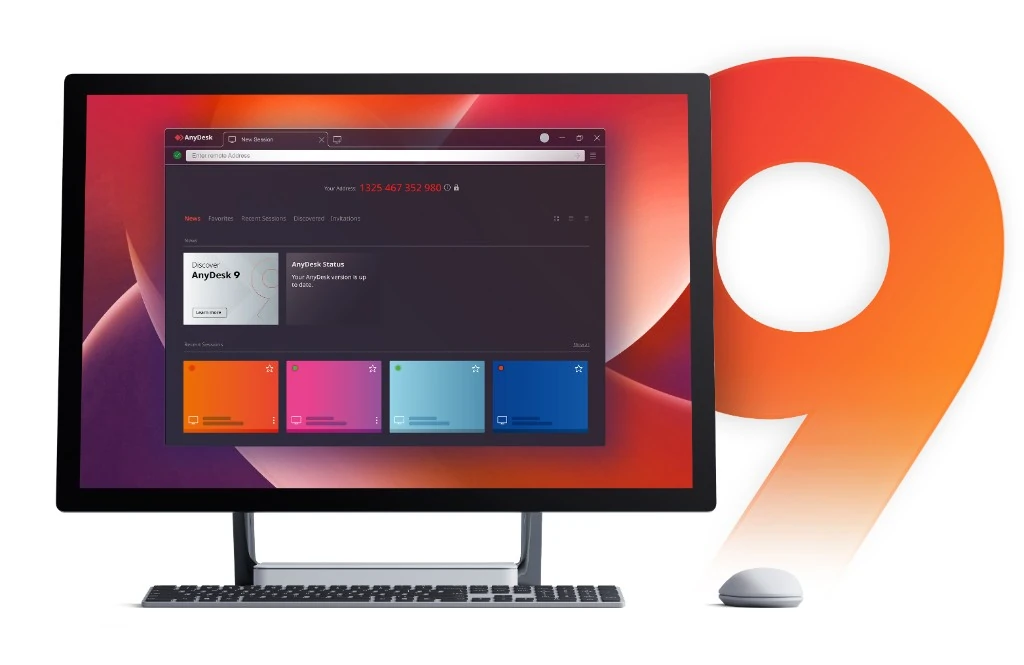
- Open the App: Launch the AnyDesk app. You will see your unique AnyDesk Address.
- Connect: Enter the Address of the remote device in the "Remote Desk" field and click connect.
- Accept: The remote user must accept the connection request, or use a password for unattended access.
Installation & Activation
Windows Installation
The AnyDesk portable download allows you to run the software without installation instantly. For permanent use and unattended access remote maintenance, click the "Install AnyDesk on this device" link within the app.
Mac Installation
Download the .dmg file, open it, and drag the AnyDesk icon to your Applications folder. You will need to grant Screen Recording and Accessibility permissions in System Preferences.
License Activation
If you have purchased a license, log in to your my.anydesk.com portal, copy your license key, and paste it into the "Change License Key" section in the AnyDesk app settings.
Remote Connection Troubleshooting
If you cannot establish a connection quickly, check the following:
- Internet Connection: Ensure both devices are connected to the internet.
- Firewall/Antivirus: Check if AnyDesk is blocked by your corporate firewall. Allow AnyDesk through port 7070.
- Status Indicator: Look at the status icon in the bottom left of the AnyDesk window. It should be green (Ready).
- Version Mismatch: Ensure both devices are running the latest version of the AnyDesk app.
Remote Desktop Issues
Display Problems
If the screen is black or flickering, try changing the hardware acceleration settings in AnyDesk (Settings > Display > Hardware Acceleration) to Direct3D or OpenGL.
Audio Not Working
Verify that "Transmit audio" is enabled in the settings of the remote device, and "Play audio" is enabled on the local device.
Frequently Asked Questions
Is AnyDesk free?
AnyDesk is free for personal use. For professional use, you need to purchase a license. View pricing.
Is AnyDesk safe for enterprise?
Yes, AnyDesk uses bank-standard TLS 1.2 technology and RSA 2048 asymmetric key exchange encryption to verify every connection.
Can I transfer files?
Yes, AnyDesk has a built-in file transfer feature. You can use the dedicated file manager or simply copy and paste files between devices.
News & Updates
Stay informed about the latest releases and feature updates for the AnyDesk app across all platforms.
- Version 8.0 Released: Introducing improved UI and enhanced security features for Windows environments.
- macOS Optimization: Better performance on Apple Silicon M2 and M3 chips.
- Mobile App Update: New gesture controls for Android and iOS devices.
About & Legal
Privacy Policy: We are committed to protecting your privacy. Read our full privacy policy to understand how we handle your data.
Sitemap: Home | Download | Help Center
Contact Us: For sales inquiries or technical support, please reach out to our authorized distributor team.